
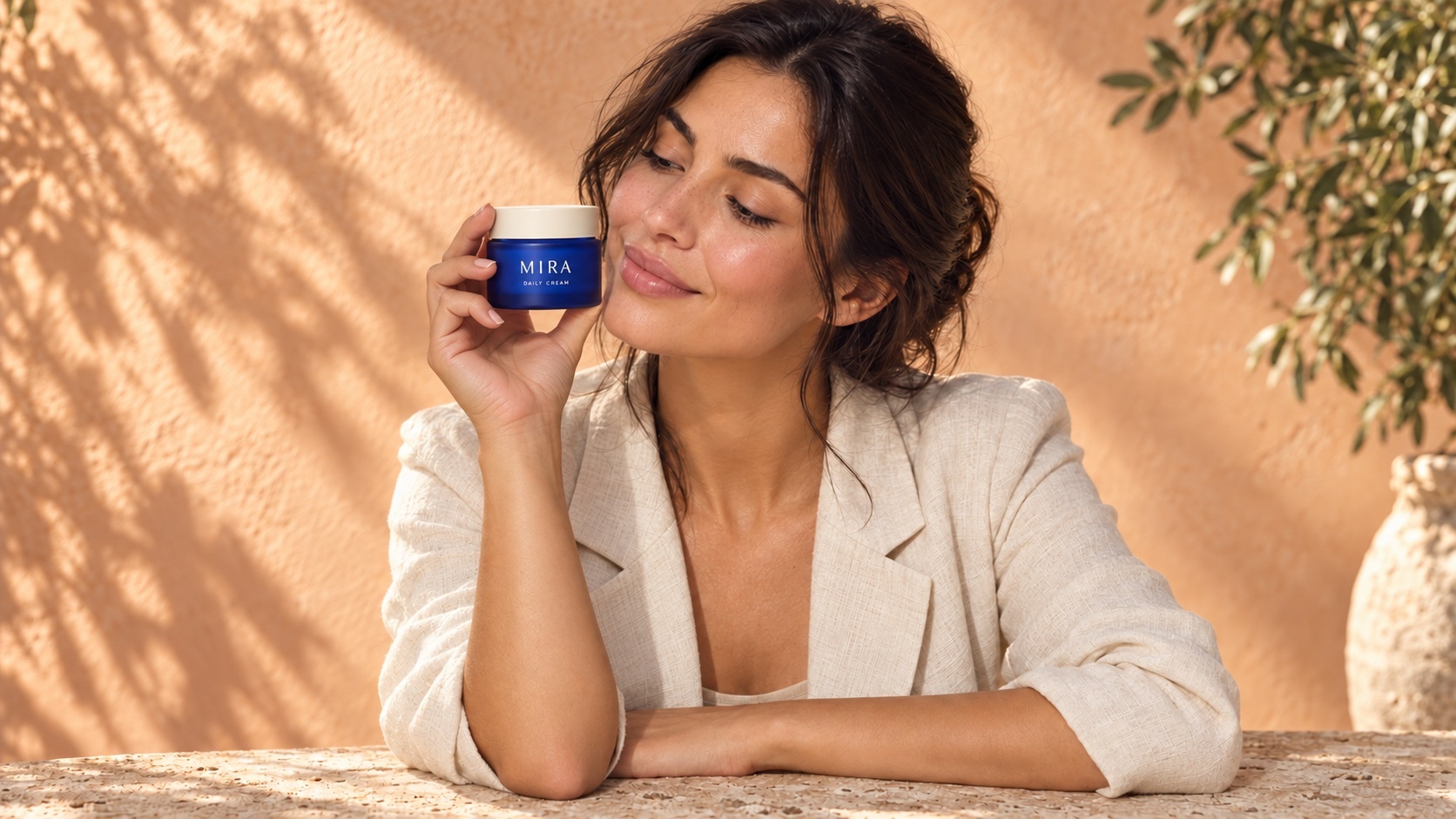
1. Start with the product, not a style adjective
“Create a premium skincare ad” asks the model to invent almost everything: the person, setting, pose, lighting, and often details of the packaging. Adding “stunning” does little to resolve those decisions.
Instead, begin with a specific deliverable: a wide lifestyle image featuring a blue skincare jar, held beside a person’s face, for a website banner. The same method works for other products, but the example below follows one jar throughout so you can see what each instruction changes.
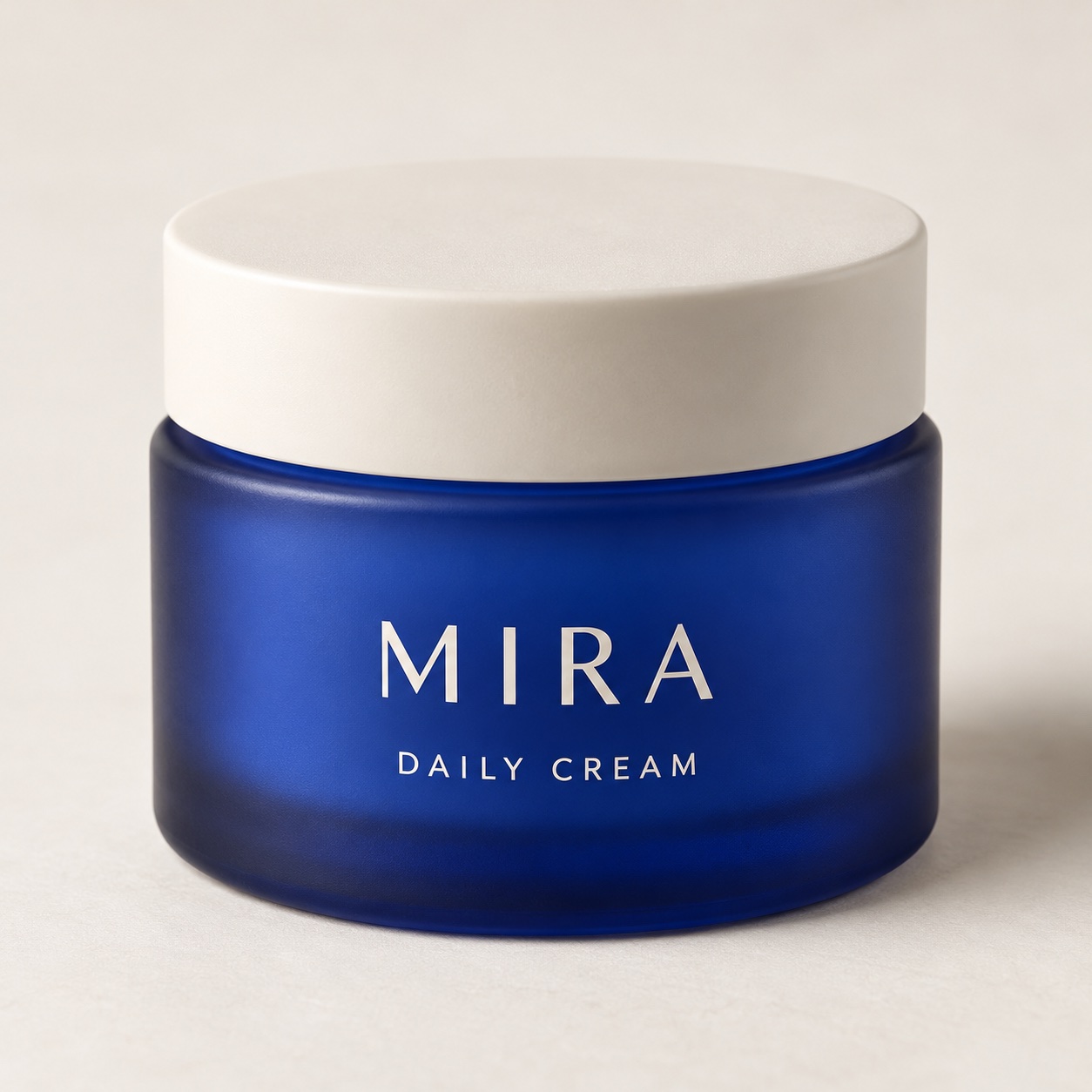
Choose a reference that makes identity easy to inspect
Use a sharp photograph with the complete product visible. A phone photo is a reasonable starting point if the shape, color, lid, and label are clear. Avoid fingers covering the label, heavy color filters, and clipped edges. A straight or slightly angled view is easier to compare than a dramatic perspective.
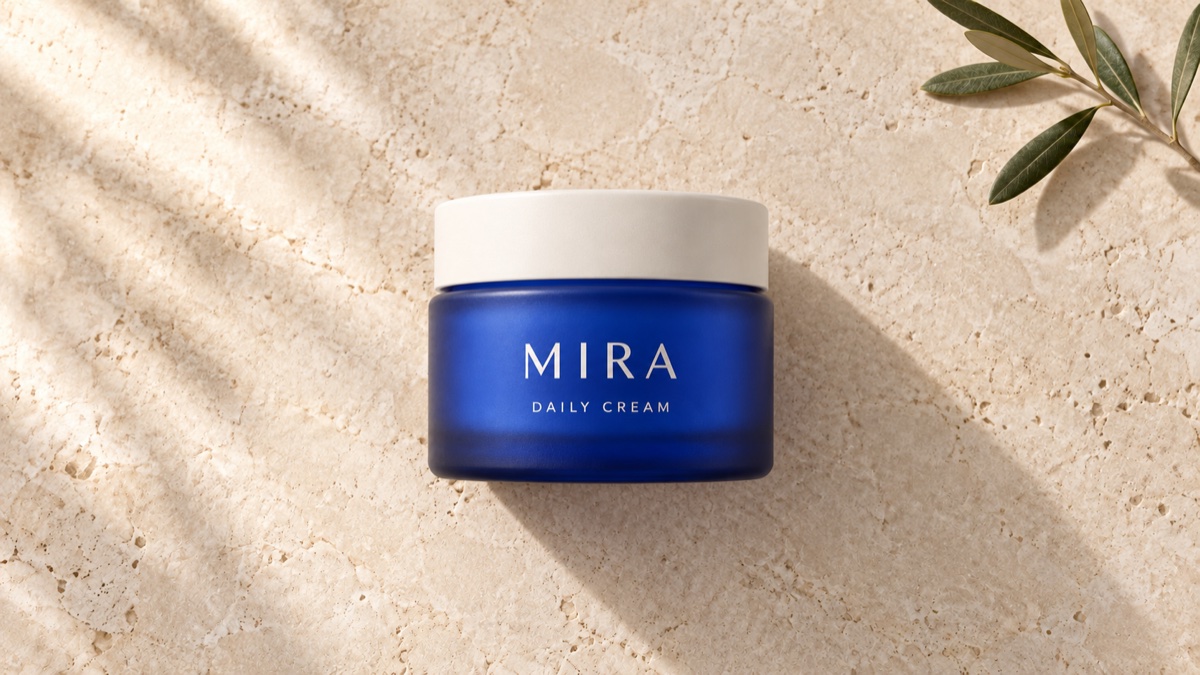
Before uploading, write down the features that must survive: a short, wide blue glass jar; a flat cream lid; the label’s position and wording. These become your inspection criteria. Keep the original file beside the generated image rather than judging from memory.
Choose your fidelity requirement now. A concept image can tolerate an approximate package. A product listing or client-approved advertisement may require exact artwork and proportions. If exact fidelity is essential, use a real product cutout or photograph in a composite and generate the surrounding scene. A preservation prompt alone is not a reliable substitute. Text and packaging details can still drift. No general prompt can promise pixel-exact packaging.
2. Give the model seven clear visual choices
This formula is a creative briefing framework, not special model syntax. Short, concrete descriptions make it easier to identify what you requested and what needs changing. You do not need to describe every leaf or reflection.
| Part | Decision to make | Example |
|---|---|---|
| 1. Job | Purpose and format | Realistic 16:9 skincare advertising photograph |
| 2. Person and product | Who or what appears | A dark-haired adult woman in a cream blazer with the referenced blue jar |
| 3. Action | What happens and where the product sits | Holding the jar beside her cheek, label facing camera |
| 4. Background | Setting and supporting objects | Peach wall, stone table, one plant; no extra products |
| 5. Layout | Framing and placement | Upper-body view, woman centered, entire jar visible |
| 6. Light and colors | Direction, shadow quality, and palette | Warm sunlight from camera-left, defined shadows, peach and cream surroundings |
| 7. Finish | Photographic treatment and materials | Natural editorial photography, visible skin texture, restrained shine, realistic glass |
Job: design for the actual placement
A website banner, vertical story, and square social post require different framing. Decide the destination before generating. Set the aspect ratio in the tool as well as describing it in the prompt when that control exists. For a banner with a headline, request empty space on the correct side. Ask for the scene without headline text and add approved typography in your design editor.
Person, product, and action: make the interaction plausible
Choose visible details that support the concept: clothing, hairstyle, age range, and pose. “Holding the jar beside her cheek, label facing camera” is more useful than “posing beautifully.” Keep the grip simple. If a person is unnecessary, use a tabletop still life and describe the product arrangement instead.
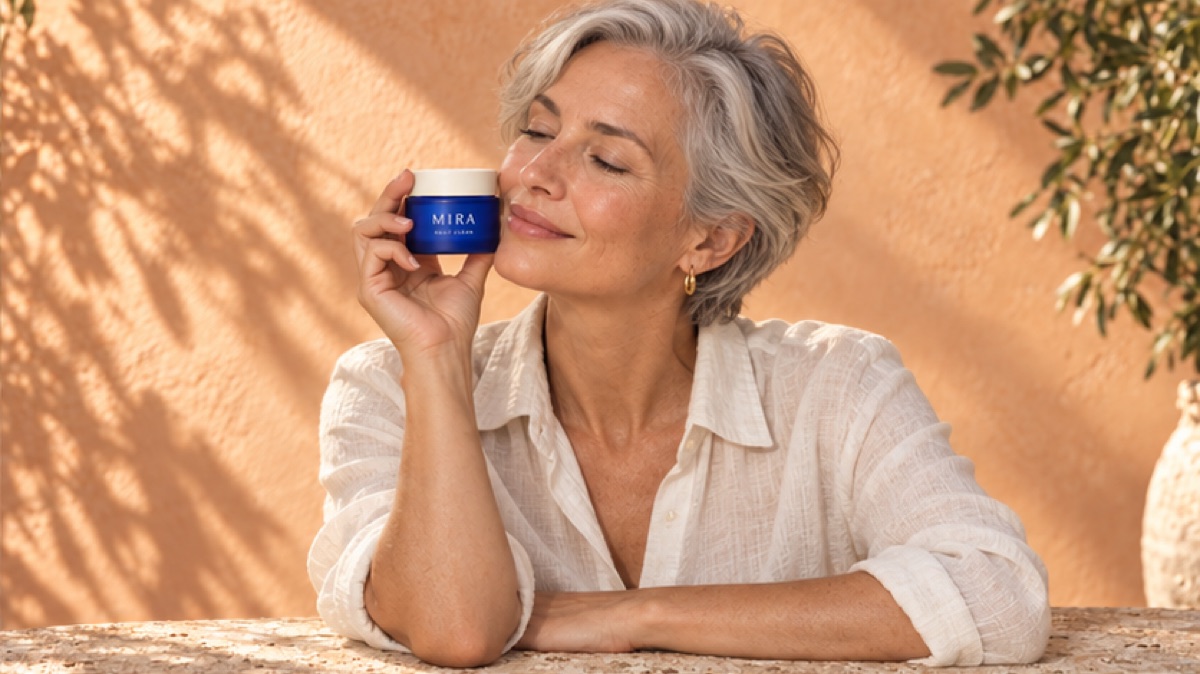
Person variation: choose visible characteristics that fit the brief, then recheck product identity.
Background and layout: give each object a reason to exist
A bathroom suggests a daily routine; a plain studio emphasizes the package; a garden suggests an outdoor setting. Select the story deliberately. Then specify how much of it appears. An upper-body view provides space for hands and product, while a close-up gives packaging more attention. “No extra products” helps communicate that the scene should contain one advertised item.
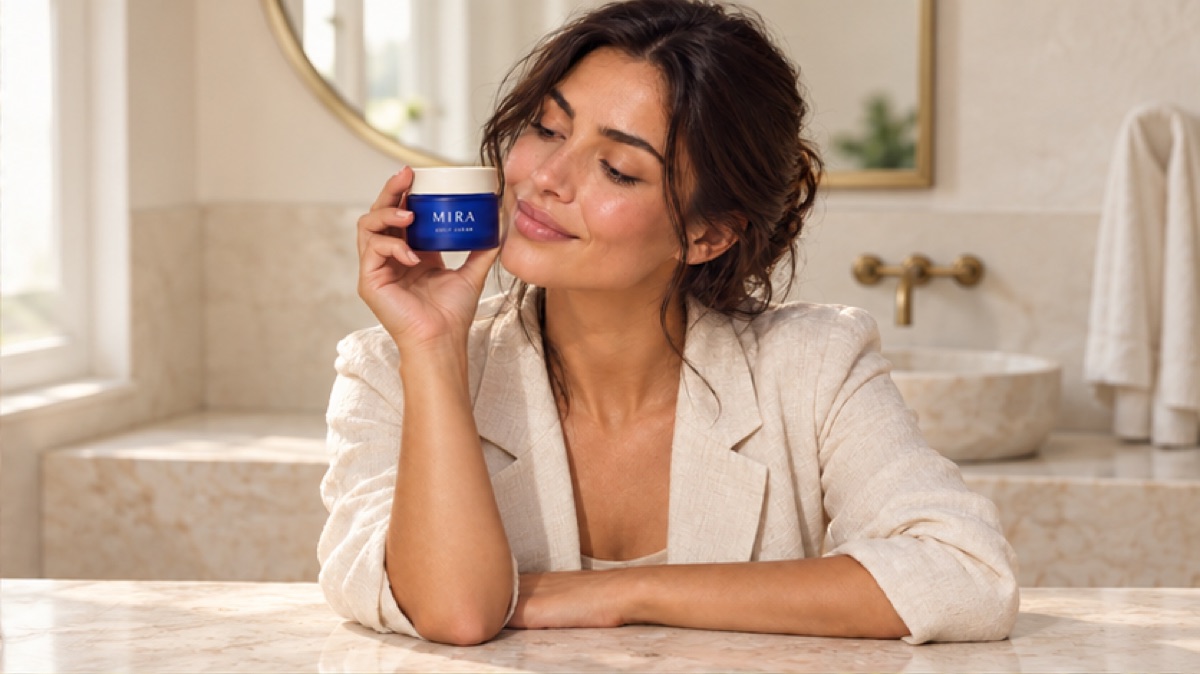
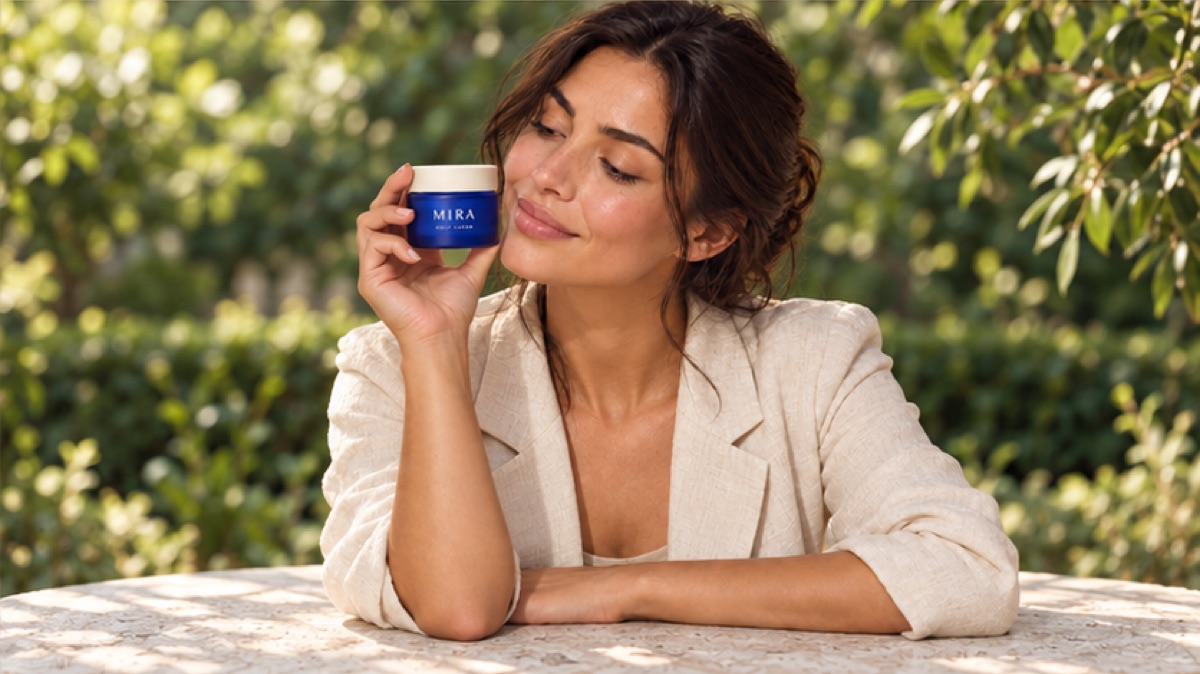
The product story changes with the setting. Name the location instead of asking for a generic “premium background.”
Light, colors, and finish: describe visible effects
“Soft window light from camera-left, gentle shadows” is an actionable direction. “Beautiful cinematic lighting” leaves both direction and contrast open. Use surrounding colors to separate the product from the scene, then check that the light has not changed the package’s apparent color.
Finish describes the treatment, not a promise of accuracy. For this example, visible skin texture and restrained highlights communicate a natural editorial look. If you ask for both harsh direct sunlight and almost shadowless light, you create a conflict. Resolve competing instructions before adding more detail.
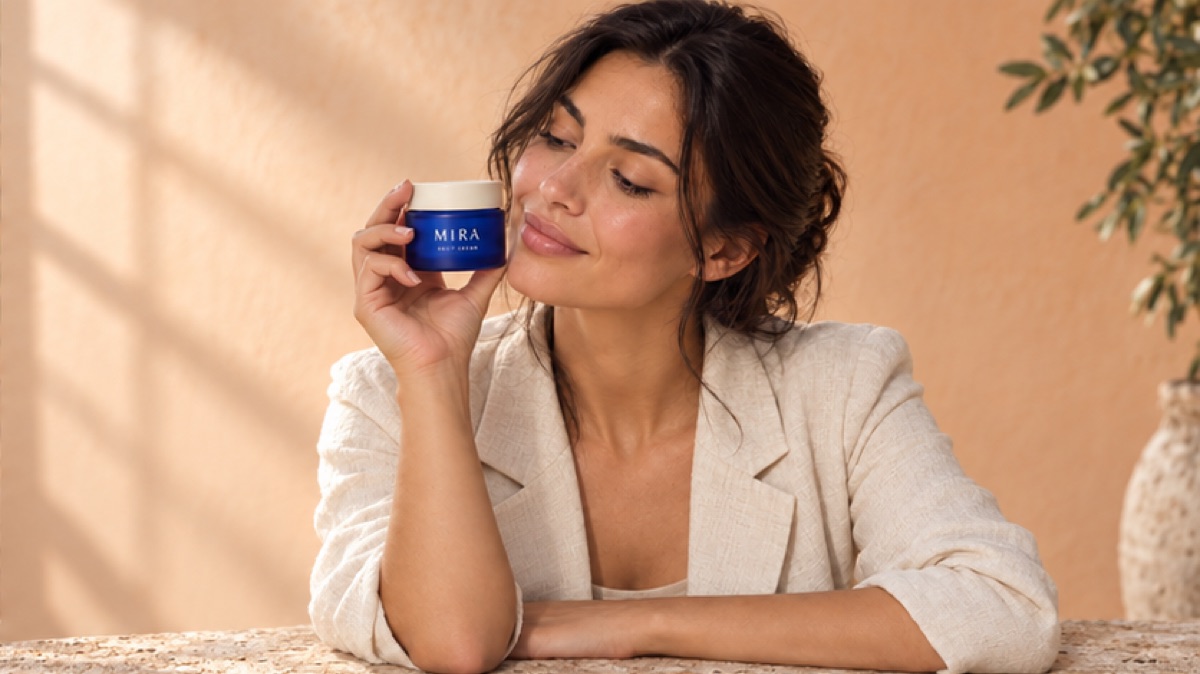
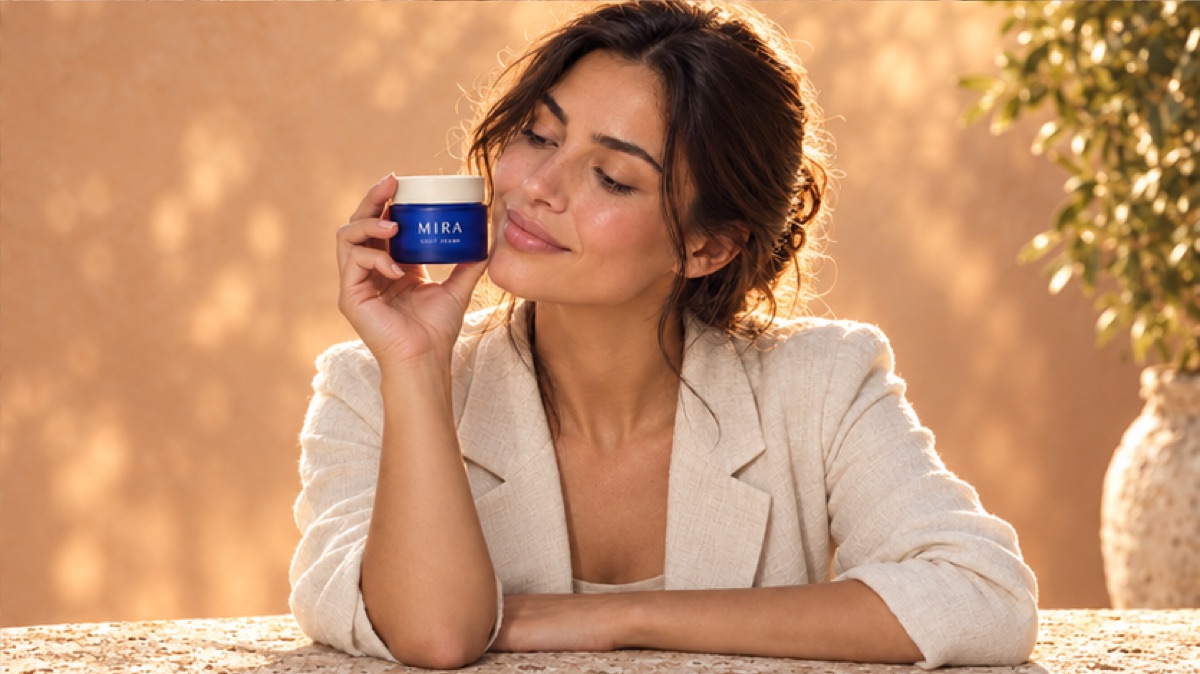
Compare light direction and shadow quality, not just how warm the image looks.
Design the empty space before you generate. A beautiful centered portrait can still be the wrong asset for a banner with a headline.
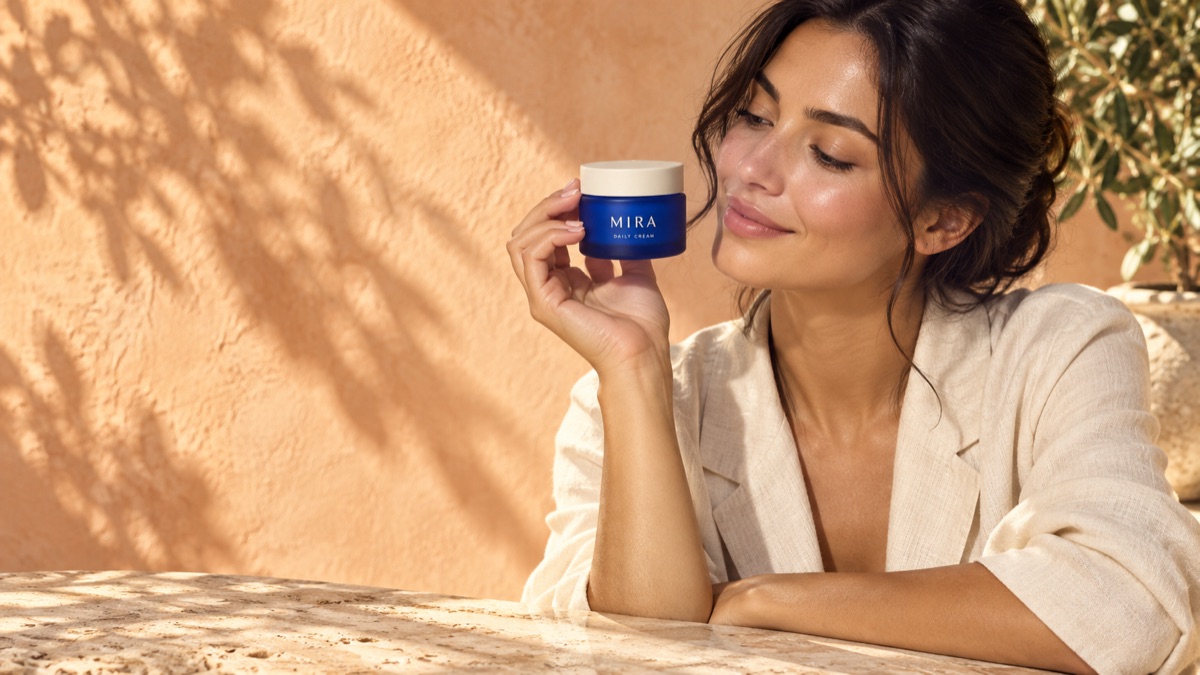
3. Copy the complete product photography prompt
Upload your product reference first. Replace the details below with features of your own product. Keep the preservation instruction separate from the seven creative choices so it is easy to find and reuse.
Product preservation instruction
Use the uploaded product photograph as the product reference. Preserve the jar's shape, proportions, blue color, lid, and label design and wording. Do not invent a different package or add another product.This tells the model what matters; it does not guarantee that the label or geometry will be reproduced correctly.
Complete seven-part scene prompt
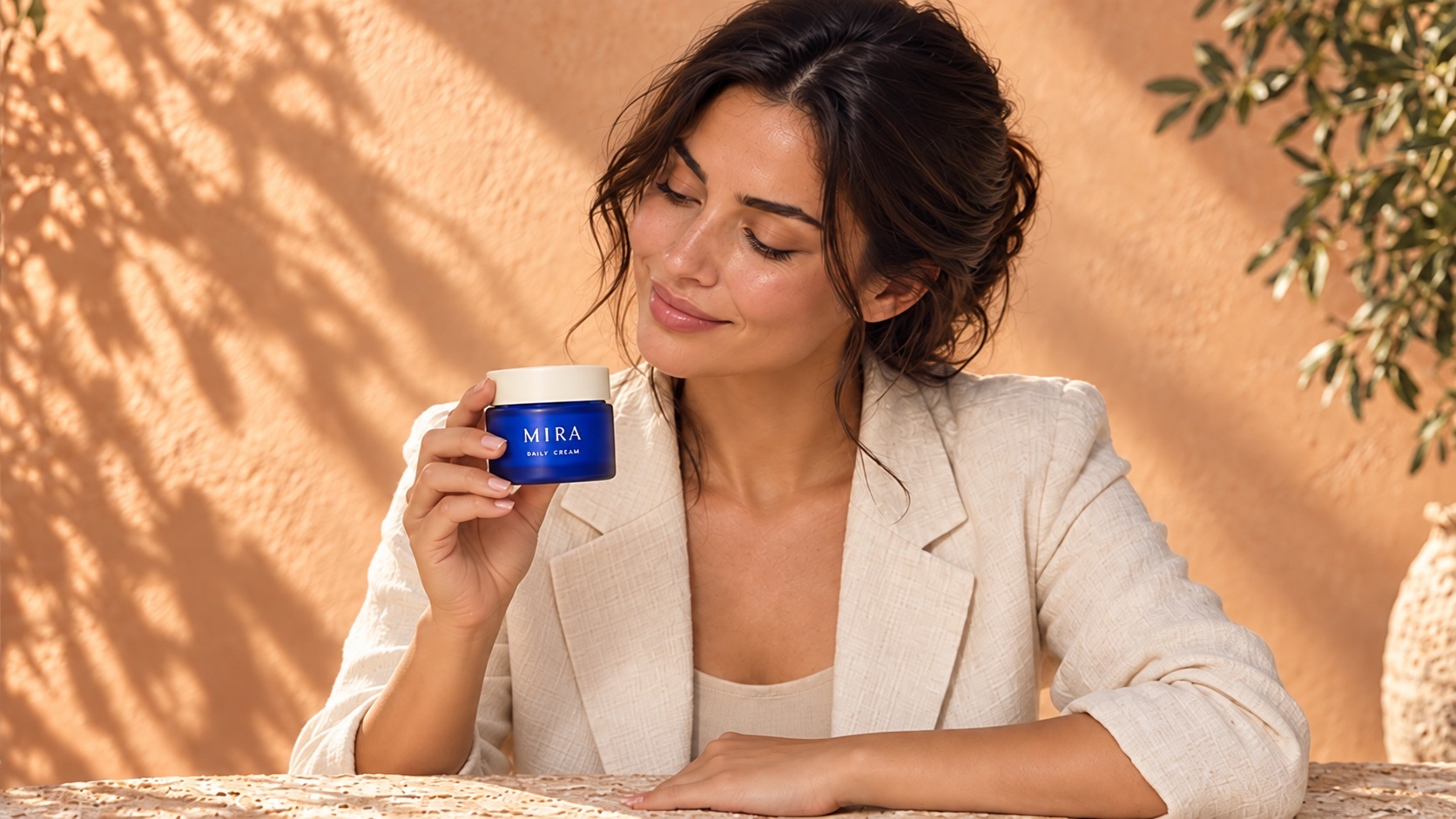
Job: Create a realistic 16:9 skincare advertising photograph.

Person and product: A dark-haired adult woman wearing a cream blazer with the same blue skincare jar from the uploaded product reference.

Action: She holds the jar beside her cheek with a simple, natural grip. The label faces the camera, and her fingers do not cover it.

Background: A peach wall, a stone table, and one plant. No extra products.

Layout: Upper-body view, woman centered. Her face, hand, and the entire jar are clearly visible. Keep the product large enough to inspect.

Light and colors: Warm sunlight from camera-left, with defined shadows on the wall. Peach and cream surroundings help the blue jar stand out. Preserve the product's own color.

Finish: Natural editorial photography, visible skin texture, restrained skin highlights, and believable glass reflections. No added headline text.
The fictional MIRA examples are prepared AI illustrations of the creative decisions in this guide. They are not a comparison of the recommended platforms. Adapt the prompt to your product and inspect each result.
4. Generate an image and inspect it in the right order
Choose an image tool that accepts reference images or supports editing an existing image. Upload the product, paste the preservation and scene instructions, and select your intended format. If the interface offers several models, confirm that the selected one supports the reference workflow; a platform’s model list does not mean every model accepts identical inputs. Check the exported dimensions too, and crop or pad deliberately for the final placement.
Keep the first prompt and output. Open the result at full size, then check the intended display size too. Use this order:
- Product identity: Compare the silhouette, proportions, lid, color, and label with the original. Read the label; do not accept something that only resembles lettering.
- Physical interaction: Check finger count and placement, the grip, jar size relative to the hand, and contact shadows. Does the hand actually support the object?
- Face and materials: Inspect eyes, teeth if visible, skin texture, glass edges, and reflections. Check whether highlights follow the light direction.
- Composition: Make sure the product survives the final crop and remains readable at the size people will see. Inspect any reserved space for the headline.
Accept or reject: An attractive scene with the wrong lid is a failed product image. A slightly imperfect background with an accurate product may be fixable. Prioritize what changes the customer’s understanding of the item.
For product listings and other accuracy-sensitive uses, compare the final composite with the source artwork as well. A real product cutout can still be distorted, badly scaled, or placed under inconsistent light during editing.
5. Fix the failed part instead of rewriting everything
Identify the mismatch, choose the relevant prompt line, and make the smallest useful change. If the tool supports editing the accepted image, use that image as the starting point. Compare before and after side by side: an improvement to the hand can still alter the jar.
| Problem | First adjustment | Check afterward |
|---|---|---|
| Wrong label or package | Restate the reference requirement. If exactness is essential, composite the real product. | All label text, proportions, lid, and color |
| Jar too small or cropped | Change layout: a closer view with the entire product visible. | Hands and face still fit the frame |
| Unnatural grip | Simplify the action, or place the jar on the table beside the hand. | Fingers, support, and contact shadows |
| Plastic-looking skin | Adjust finish: visible skin texture and restrained highlights. | Face and product reflections |
| Shadows too harsh | Replace direct sunlight with soft window light. | Color, contrast, and label readability |
| Clutter or duplicate jars | Simplify the background and specify a single product. | Entire frame, including edges |
For more editing patterns, see our Nano Banana 2 photo editing prompts.
Change one line. Compare the whole image. Keep the original reference and the accepted result side by side so a local improvement does not hide a new product error.
Three controlled variations
Test each variation independently against the complete baseline prompt. Replace only the named line; do not combine all three changes at once. These are structured creative experiments, not controlled measurements of model quality: outputs can vary even when the prompt is unchanged.
Variation A · Change only the light
Light and colors: Soft window light from camera-left, with gentle shadows. Keep the peach and cream surroundings and preserve the product's blue color.Variation B · Change only the action
Action: She holds the same jar at chest level with a simple, natural grip. The label faces the camera, and her fingers do not cover it.Variation C · Change only the background
Background: A plain peach studio wall and a stone table, without a plant. No extra products.Record the prompt change, output, and decision. Keep a variation only if it solves the intended problem without introducing a more important defect. This is more informative than keeping whichever image looks newest.
6. Build a small campaign from one approved scene
Once you have an acceptable image, use it as the visual anchor for a series. Keep the person, wardrobe, product, background, light, and finish consistent. Start with three actions: jar beside the cheek, jar at chest level, and jar on the table.
If your tool accepts multiple references, use the approved scene to guide the setting and person, while retaining the original product photograph for product identity. State the role of each reference explicitly. Do not assume that adding an image locks every detail.
Compare the images together before approving them. Check facial features, wardrobe, package proportions, label placement, shadows, and color treatment. If one shot looks like a different campaign, return to the accepted reference rather than stacking new style adjectives onto the prompt.
Common questions about AI product photography prompts
Can AI preserve my product label exactly?
Do not assume so. A clear reference and preservation instruction help communicate the requirement, but text, color, and shape can still change. For exact packaging, use approved real product imagery in the final composite and inspect the finished export.
Do I need a professional product photo to start?
You need a clear reference, not necessarily a studio shoot. A sharp phone photograph can work for a concept. If the package is blurred, cropped, or tinted by colored light, replace the source before trying to fix the problem with a longer prompt.
Does a longer prompt produce a better image?
Length is not the goal. Include decisions that affect the deliverable, remove contradictions, and leave unimportant details open. If a new sentence does not clarify the subject, action, composition, light, finish, or product requirement, consider omitting it.
Can I use one generated person across several images?
An accepted scene reference can guide subsequent images when the tool supports it, but consistency needs review. Compare facial features and proportions across the series. Treat each output as a new image that must pass inspection.
Put the formula to work
Turn your product brief into your next campaign
You have the reference, the prompt, and the checklist. Choose a workspace, build your first scene, then turn the strongest direction into more creative options.
Product scenes → motion ideas
Higgsfield
Explore more creative directions from one product reference.
Build a lifestyle scene, try a different setting or lighting treatment, and develop the approved still into a short video concept. Higgsfield brings image and video workflows into one creative workspace.
- Start with your product reference and the seven-part brief.
- Explore new scenes without rebuilding every prompt from scratch.
- Move from an approved still to a motion experiment.
Choose it for: visual exploration and product-led image and video concepts.
Create with HiggsfieldProduct visuals → narrated content
ElevenLabs
Bring the visual and the voice into the same workflow.
Use Image & Video to develop reference-based product visuals, then add narration, music, or sound effects when the concept becomes a video. A useful route for creators producing both the image and the story around it.
- Create visual options from a prompt and product reference.
- Use model-specific format controls for the asset you need.
- Continue into voice and audio production in one platform.
Choose it for: product content that will become a narrated ad, tutorial, or social video.
Create with ElevenLabs